PLUGIN MANUAL
EARLYMURMUR-Cast
A broadcast tap for your master bus.
UPDATED Sep 19, 2026
MURMUR-Cast is a broadcast tap: drop it as the last plugin on your master bus and it gives you one panel to arm a stream, invite a listener, and watch what's actually leaving your speakers.
It's the earliest plugin in the Murmur family. Today, with broadcasting off, Cast is a transparent pass-through — what you hear is guaranteed to be exactly what you'd hear without it loaded. The plumbing for live streaming, invites, and level metering is real and working; a public listener roster and stream discovery are not built yet.
Every screen below is the real panel, captured straight from the plugin — not a mockup.
THE PANEL
7 things worth knowing
A real screenshot of MURMUR-Cast, captured straight from the plugin. Each number below points at the matching part of the panel.
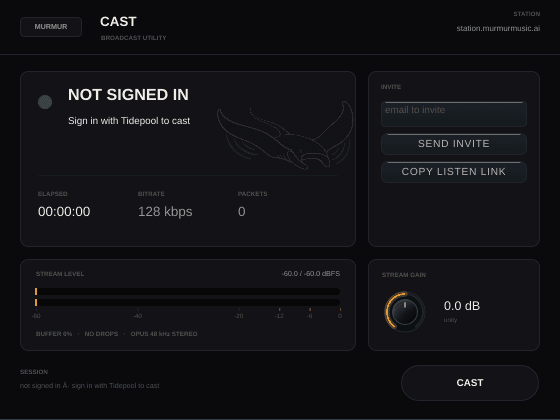
- 1
Header
Identifies the plugin (MURMUR / CAST / BROADCAST UTILITY) and, top right, the station host your session connects to when you go live.
- 2
Status lamp
The single source of truth for what Cast is doing right now: NOT SIGNED IN, READY, STARTING, ARMED, ON AIR, CONNECTING, RECONNECTING, or FAILED. ON AIR only lights up once audio is actually moving and the station has accepted it — not a moment before.
- 3
Session stats
ELAPSED counts up from the moment you actually go on air (it resets to 00:00:00 if you drop off). BITRATE and PACKETS report the real Opus stream — nothing here is a placeholder.
- 4
Invite
Enter a listener's email and send them a real, working listen link — no separate app or dashboard needed. COPY LISTEN LINK grabs the same URL to paste yourself. Both need a session to be live first.
- 5
Stream level
A real-time stereo meter of what's being sent to the station, in dBFS, on a -60 to 0 dB scale. Below it: buffer fill, any dropped audio blocks, and the stream format (Opus, 48 kHz, stereo).
- 6
Stream gain
A listener-only trim on the outgoing stream. It never touches the room you're mixing in — turning this knob changes nothing you hear locally, only what listeners get. Double-click to snap back to unity.
- 7
Session & Go Live
The footer names who's signed in (your Tidepool license — Cast never shows your token, only that one is held) and, bottom right, the CAST / ON AIR toggle that actually arms the broadcast.
GETTING STARTED
1. Sign in with Tidepool
Cast reads your Tidepool license automatically — there's no separate activation screen. The footer will read "not signed in" until it finds one.
2. Load Cast last on your master bus
Cast doesn't process audio; it taps whatever reaches it. Put it after every other plugin so it's tapping your real final mix.
3. Press CAST to go live
The status lamp will move through STARTING and ARMED before it reaches ON AIR — that's Cast waiting for a session to mint and for real audio to arrive, not a stuck UI.
4. Invite a listener
Once you're ON AIR, enter an email under Invite and send it, or copy the listen link yourself.
FAQ
Does Cast change my sound?
No. With broadcasting off, Cast is a transparent pass-through. STREAM GAIN, when broadcasting, only trims what listeners hear — never your own monitoring.
Can I see how many people are listening?
Not yet. Cast's panel has real invite and streaming plumbing today; a listener count and roster aren't built yet, and we'd rather ship this page honestly than promise a feature you can't actually use.
Why is ELAPSED stuck at 00:00:00?
ELAPSED only starts once you're genuinely ON AIR — audio moving and the station accepting it. If you're ARMED (waiting for audio) or CONNECTING, it stays at zero.